
Note: The user must have administrator access level in SERVICE to be able to access the shop floor LAN network devices analysis tool on the Admin > Networks web page.
The Network Devices Tool allows users to view the devices that the Amphion S14-H or A14-H green box has detected to be connected to the shop floor LAN of the project. This tool checks the green box’s ARP table for devices it has previously connected to, so devices that show up should generally be on the same subnet as was set during Network Configuration.
The following information is provided when using the Network Devices tool:
- IPv4 Address
- MAC Address
- Associated Project Number (If identified as an Amphion)
- Device Type (S14 / A14 / etc, If identified as an Amphion)
The main purpose of this tool is to search for Amphion red box devices that are connected to the network, in order to check whether the red box is connected, and was configured to the correct project.
Devices may not show up in this list if they are not on the same subnet (as set during Network Configuration), or if an IP Address conflict exists on the network (such as two S14-N red boxes improperly configured for the same machine).
In SERVICE, navigate to Admin > Networks and search for the project number of the network on which you would like to view the shop floor LAN network devices. 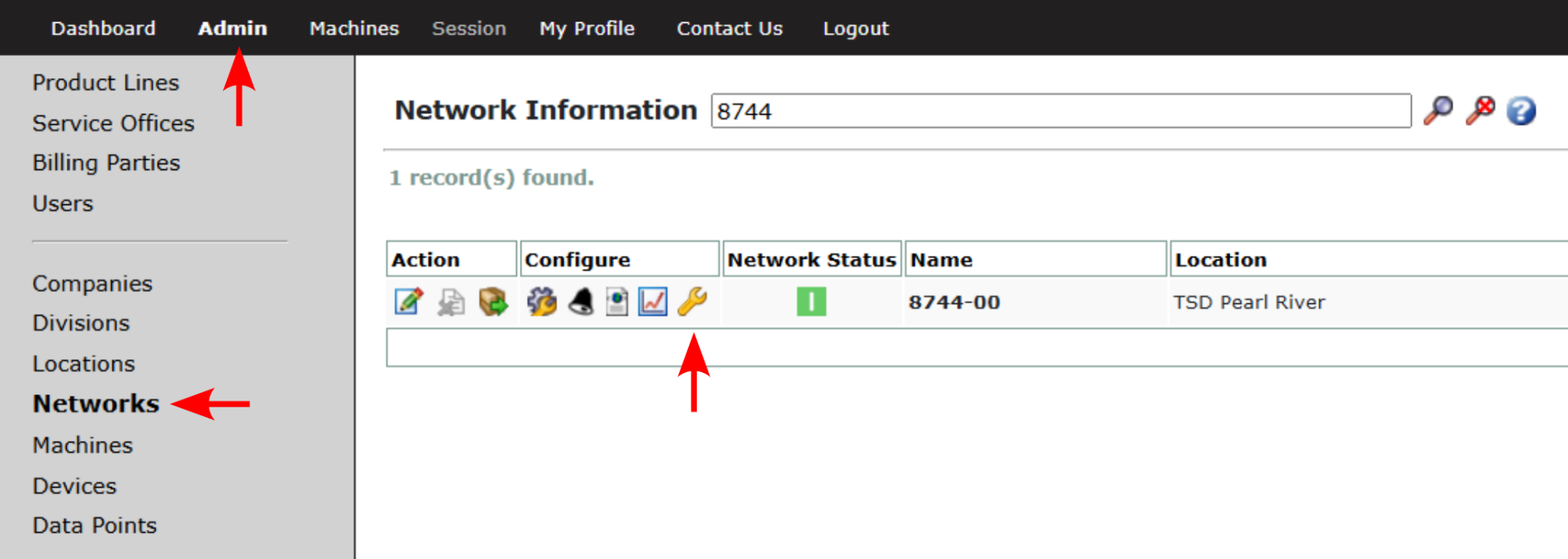
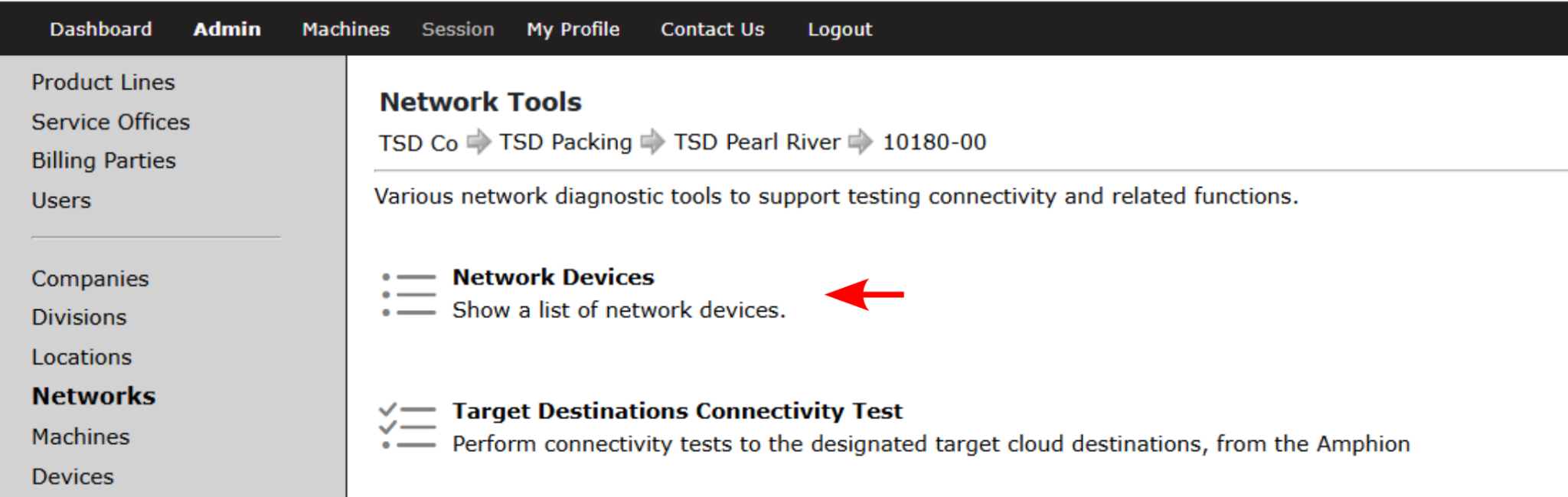
On this page the user will be able to see the Network Devices  icon. Clicking this icon will bring you to the Network Tools page. From there, selecting Network Devices will show you the IP and MAC Addresses of each of the devices that contacted that particular RSSD green box since the green box’s last reboot. The system will recognize the device information of any Amphions in the list and identify the model type and ei³ project number associated with the Amphion.
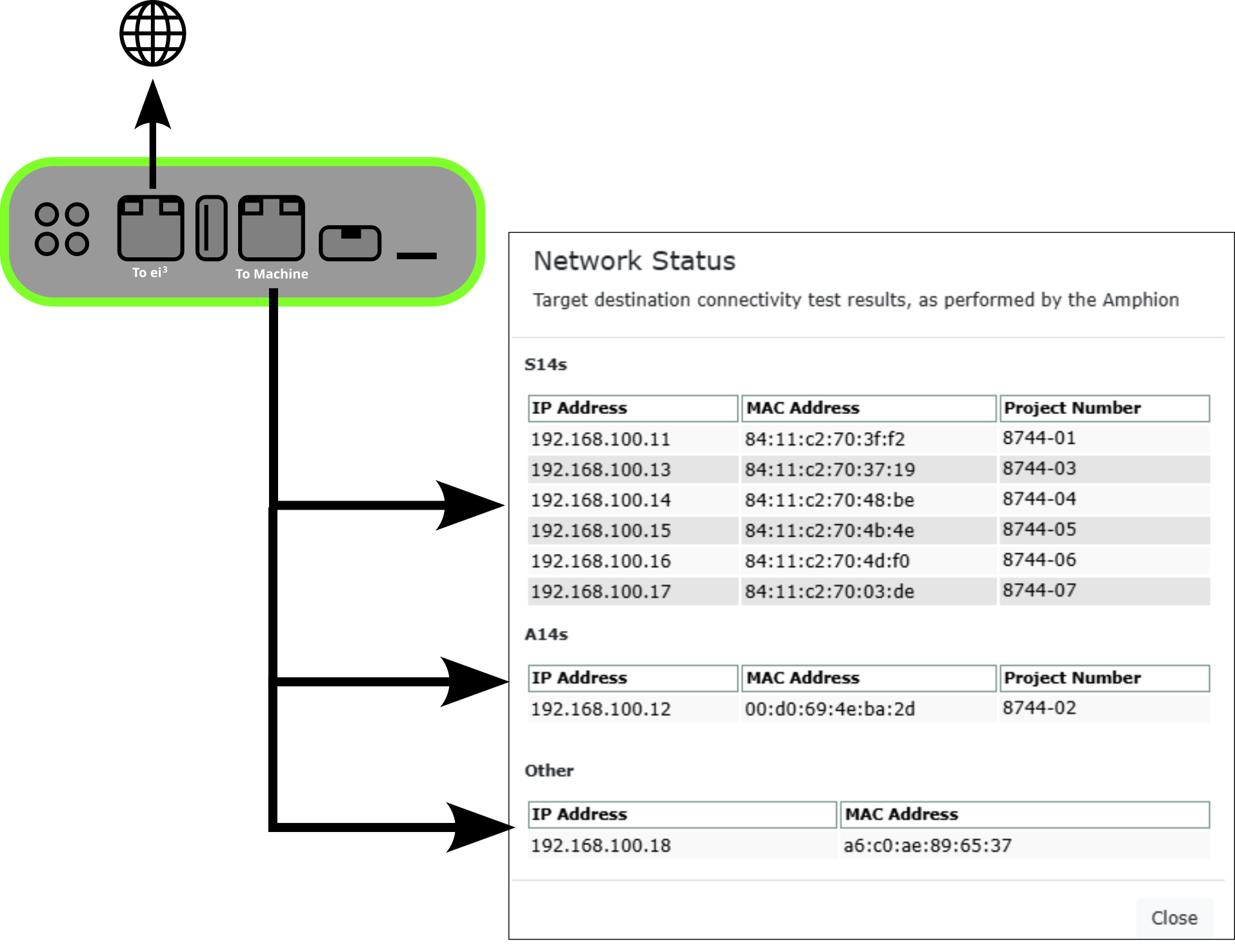
In the Network Status table, detected devices will be grouped by device type if recognized as an Amphion. In this case, the IPv4 Addresses, MAC Addresses and ei3 project numbers of each device are shown. In the case of other devices, just the IP Address and MAC Address are present.
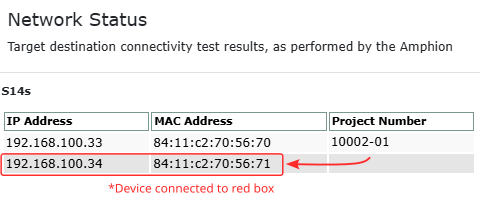
On V1 Networks, devices connected to the S14-N / A14-N red boxes will show up in this list under their associated Amphion device, alongside their local IP Address on the machine LAN, MAC Address and associated ei3 project number. V2 networks will not show these devices included in the table. The following figure shows an example result for a V1 network.
In the following cases, searching for devices on the shop floor LAN is not supported, and will return an error:
- The Amphion software version is not verified/specified
- The Amphion is a Type C
- The Amphion model is neither an S14 or an A14
- The software version of the Amphion is too old
This network analysis tool is available only for the following Amphion software versions:
- S14: Version 4.3.9.5 or above
- A14: Version 3.3.3.0 or above
- A14K: Version 4.0.1.0 or above
If your current software version is too old, the following can be done to update it:
- If you have an A14, the Amphion needs to be reconfigured.
- If you have an S14, the Amphion needs to be rebooted.
© 2024 ei3 Corporation. Content of this web page is proprietary to ei3 Corporation.