
Configure Machine Devices
The Configure Machine Devices page lets you manage all devices associated with a machine — add, edit, delete, reorder, and perform bulk operations. To access it, navigate to a machine in Service Admin and click Configure, then select the Devices tab.
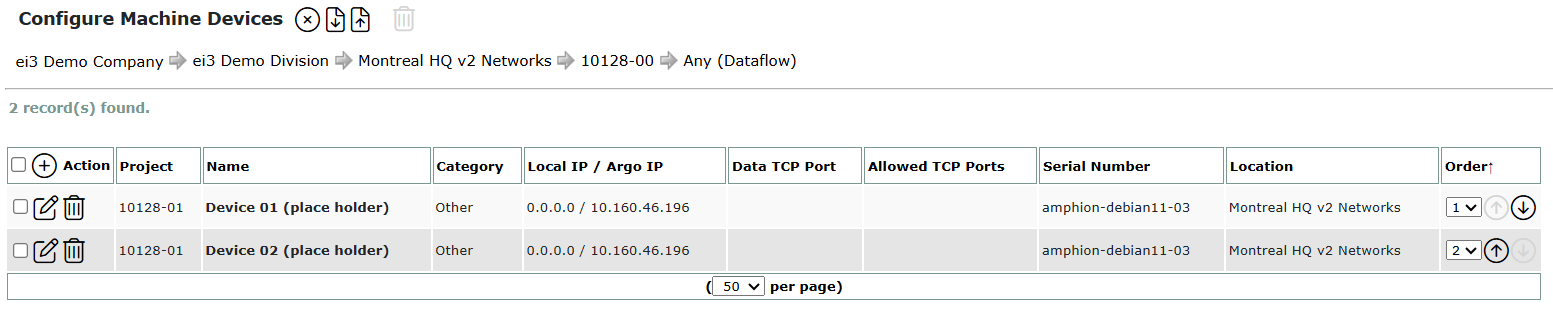
Device List
The device list displays all devices configured for the selected machine. Each row shows the device name, category, IP addresses, TCP ports, location, and serial number. You can sort the list by any column by clicking the column header.
Use the rows per page selector to control how many devices appear at a time.
Note: A search bar is available when viewing devices outside of configuration mode (via the Devices link). Search is not available while in Configure mode.

Adding a Device
Click the + (Add) icon in the Action column header to open the device form. Fill in the required fields and click Save.
New devices are automatically placed at the top of the list when using custom ordering.
Editing a Device
Click the pencil (Edit) icon on any device row to open the edit form. Make your changes and click Save.
Deleting a Device
Click the trash (Delete) icon on a device row. Confirm the deletion when prompted.
Sorting and Custom Ordering
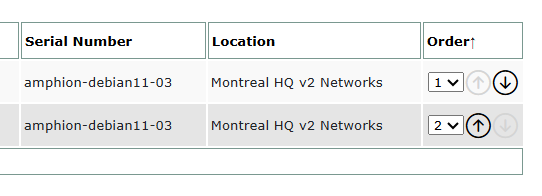
By default, the device list is sorted by User-Defined Order, which lets you control the sequence manually. Use the ↑ and ↓ arrows in the Order column to move a device up or down one position. Changes are saved immediately.
To sort by a different column (Name, Local IP, etc.), click the column header. You can switch back to user-defined order at any time by clicking the Order column header — your custom arrangement is preserved.
Importing Devices
You can import devices from an XML file to add, update, or delete multiple devices at once.
- Click the Import (upload) icon in the toolbar.
- Select your XML file and click Upload.
- Review the device list. Each row defaults to the Add action — change individual rows as needed, or use the Action dropdown in the column header to apply an action to all rows at once.
- Click Import and confirm.
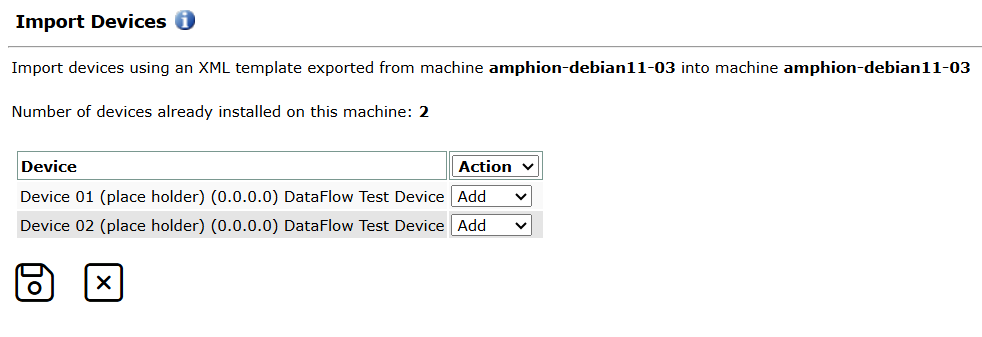
Note: The Update and Delete actions are only available for devices that already exist in the system.
Exporting Devices
Click the Export (download) icon in the toolbar to download the current device list as an XML file. This file can be edited and re-imported, or used as a template for new machines.
The Export button is disabled when no devices have been configured.
Bulk Operations
You can select multiple devices to perform actions on all of them at once.
- Check the checkbox on each device row you want to select, or use the header checkbox to select all devices on the current page.
- The Bulk Delete button in the toolbar activates once you have selected devices.
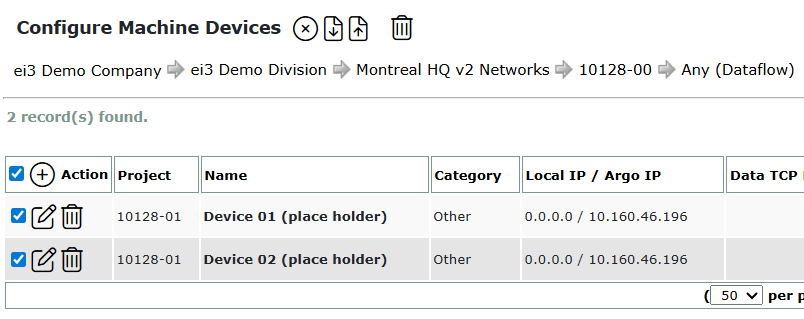
Note: Selections are limited to the current page. If you need to operate on more devices than fit on one page, increase the rows per page count first.
Bulk Delete
- Select the devices you want to delete.
- Click the Bulk Delete (trash) icon in the toolbar.
- Confirm the deletion when prompted. The list refreshes and selections are cleared.