
Note: This page tests the Amphion’s outbound VPN connections to ei3, as described in How does the Amphion VPN device connect to ei3?. Depending on how the device is configured, the VPN Test page can be reached directly from the shop floor network without a SERVICE login, so it can be handed to a customer’s IT or network team to self-test firewall changes.
The VPN Test page on the Amphion S14 web UI lets you confirm whether the device can establish its secure VPN connections to ei3’s datacenters. It runs a set of connectivity checks against each configured VPN client (datacenter) and reports, step by step, exactly where a connection is succeeding or failing, so network issues can be diagnosed without needing remote access to the device.
Where to Find It
On the Amphion S14 web UI, open the VPN Test page from the navigation menu.

Section 1: Configured VPN Clients
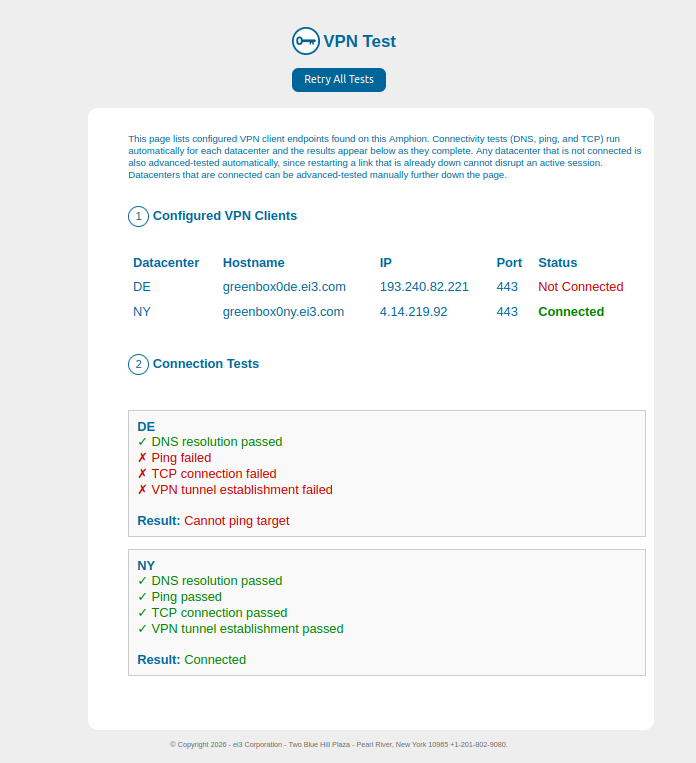
The top of the page lists every VPN client (datacenter) configured on the device, along with its current connection status:
| Column | Description |
|---|---|
| Datacenter | The short name of the ei3 datacenter the device connects to (for example DE, NY) |
| Hostname | The VPN server hostname for that datacenter |
| IP | The resolved IP address of the VPN server |
| Port | The destination port used for the VPN connection (typically 443) |
| Status | Connected, Not Connected, or to ei3 port not connected |
If a datacenter shows to ei3 port not connected, the Amphion’s “to ei3” Ethernet port is unplugged or down, and no VPN testing can run until that physical link is restored.
If the list is empty, the device has no VPN profiles configured and should be checked to confirm it was set up correctly.
Section 2: Connection Tests
Below the client list, the page automatically runs a connectivity test for each configured datacenter and displays the results as they complete. Each datacenter’s result is shown as a checklist:
- DNS resolved – the VPN server hostname was successfully resolved to an IP address
- Ping passed – the resolved (or configured) IP address responded to a ping
- TCP connection passed – a TCP connection could be opened to the VPN port
- VPN tunnel established – the actual VPN tunnel came up and the device is connected
Each line shows a green checkmark if that step succeeded, or a red X if it failed. A single Result line underneath summarizes the outcome in one sentence (for example Cannot ping target, Cannot connect to VPN port, or the reason the VPN tunnel failed to come up).
Because each step depends on the one before it, a failure early in the list (for example, ping failing) means the later steps could not be attempted and are shown as failed as well. This lets you see immediately how far the connection attempt got before it broke down.
Automatic Advanced Testing for Down Datacenters
If a datacenter is Not Connected, the page automatically follows up with a deeper connectivity check once the basic checks (DNS, ping, TCP) pass or are skipped. This deeper check briefly restarts the VPN service for that datacenter and watches for the tunnel to come up. This is done automatically and safely only for datacenters that are already disconnected, since restarting a link that is already down cannot disrupt an active session.
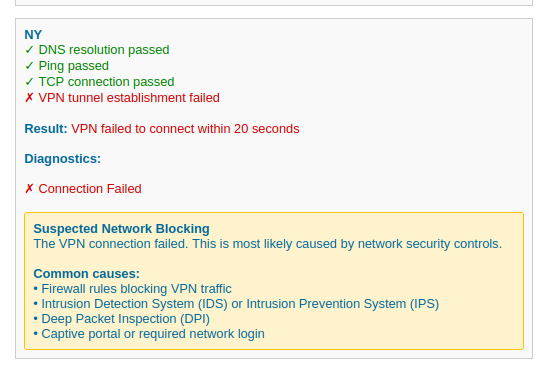
If the VPN tunnel still fails to establish, a Diagnostics panel appears below the checklist with more detail on the likely cause, such as:
- Configuration Error – a problem with the VPN configuration for that datacenter
- Authentication Failed – the project is not yet registered with ei3
- Connection Reset – the connection was reset in a way that typically indicates IDS/IPS or Deep Packet Inspection (DPI) actively blocking VPN traffic
- Connection Failed – most often caused by a firewall, IDS/IPS, DPI, or a captive portal blocking the connection
Each of these includes guidance on what to check next, and who to contact if the issue persists.
Retry All Tests
Use the Retry All Tests button at the top of the page to re-run every test from scratch. This is useful after making a firewall change, to confirm whether the connection now succeeds.
Interpreting the Results
| Result you see | What it means | What to check |
|---|---|---|
| DNS resolved / Ping passed / TCP connection passed, VPN tunnel established | Full connectivity is working for this datacenter | No action needed |
| DNS failed | The VPN server hostname could not be resolved | DNS server reachability, DNS server configuration on the shop floor network |
| Ping failed | The IP address did not respond to ping | Network routing, firewall rules blocking ICMP, or the target may simply not respond to ping even when otherwise reachable |
| TCP connection failed | Could not open a TCP connection on the VPN port (usually 443) | Firewall rules blocking outbound traffic to ei3’s IP ranges on port 443 |
| Basic checks pass, VPN tunnel not established | The network path is open, but the VPN protocol itself is being blocked or reset | IDS/IPS, DPI, or a firewall specifically inspecting/blocking VPN traffic; see the Diagnostics panel for the specific cause |
| Authentication Failed | Basic connectivity and the tunnel attempt succeeded, but authentication was rejected | Confirm the project has finished registering with ei3; wait and retry, then contact care@ei3.com if it persists |