
Note: The user must have administrator access level in SERVICE to be able to access the shop floor LAN network devices analysis tool in the Admin > Networks page.
The Network Destinations Connectivity Test is a network tool that allows users to confirm whether or not the Amphion green box is able to access certain domains or IP Addresses from the network connected to the ‘To ei3’ ethernet port. This can be useful in diagnosing connectivity issues or identifying blocked domains that may impede traffic.
For each destination in the tested list, this test will determine whether:
- The domain can be resolved
- The port is open
- HTTP requests can be made (If the endpoint supports it)
In SERVICE, navigate to Admin > Networks and search for the project number of the network on which you would like to view the shop floor LAN network devices.
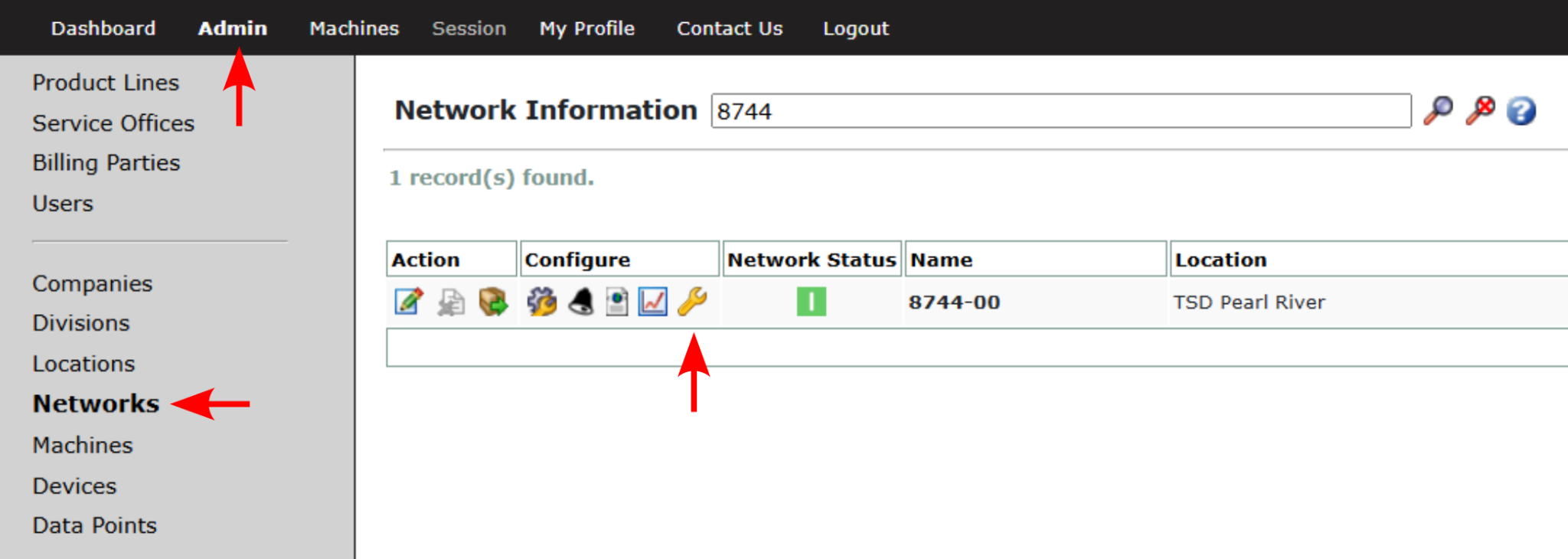
On this page the user will be able to see the Network Devices  icon. Clicking this will take you to the Network Tools launch page, which includes the option Target Destinations Connectivity Test. This option will be unavailable if the network is offline, or the Amphion software is not up to date.
The minimum Amphion software versions required are:
- S14 – 4.3.9.8 and above
- A14 – 3.3.3.2 and above
- A14K – 4.0.1.1 and above
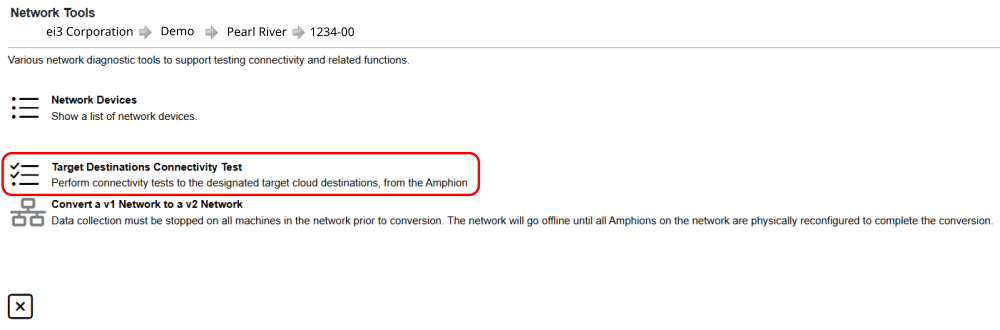
Clicking the Target Destinations Connectivity Test will begin the test, and a loading icon will appear. During this time, the Amphion will run the tests in the order shown below.
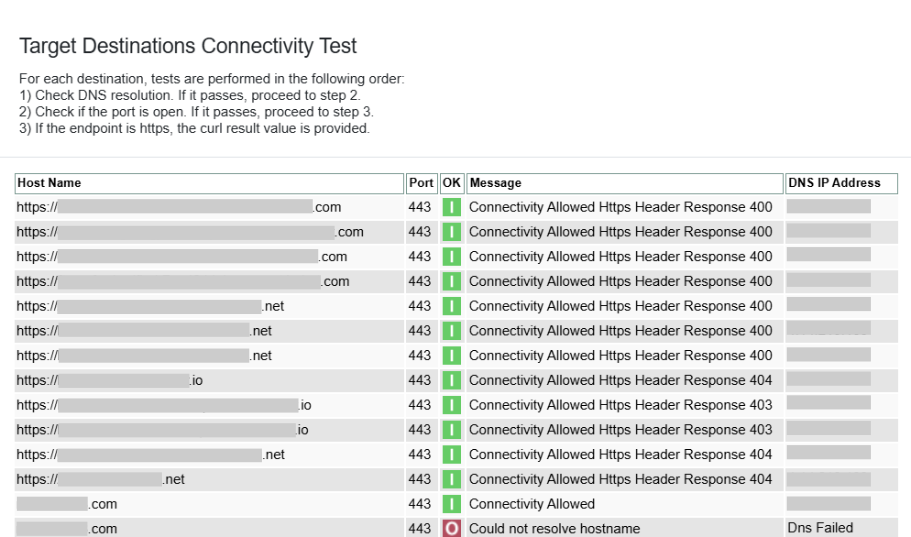
- DNS Resolution – If the destination is a domain name, the Amphion will attempt to resolve the IP Address using nslookup. Failing to resolve the address will end the test and report a DNS resolution failure. If the address is resolved, it will be displayed in the results table.
- Port Checking – If the destination was resolved or was originally a raw IP Address, the Amphion will check if the port associated with the destination is open. A closed port will end the test and report this to the user.
- Curl Request – If the port checking succeeds and the destination supports HTTP, a request for HTTP headers will be made using curl and the response code will be reported.
The figure below shows an example of test results that will appear.
Specifying New Target Destinations
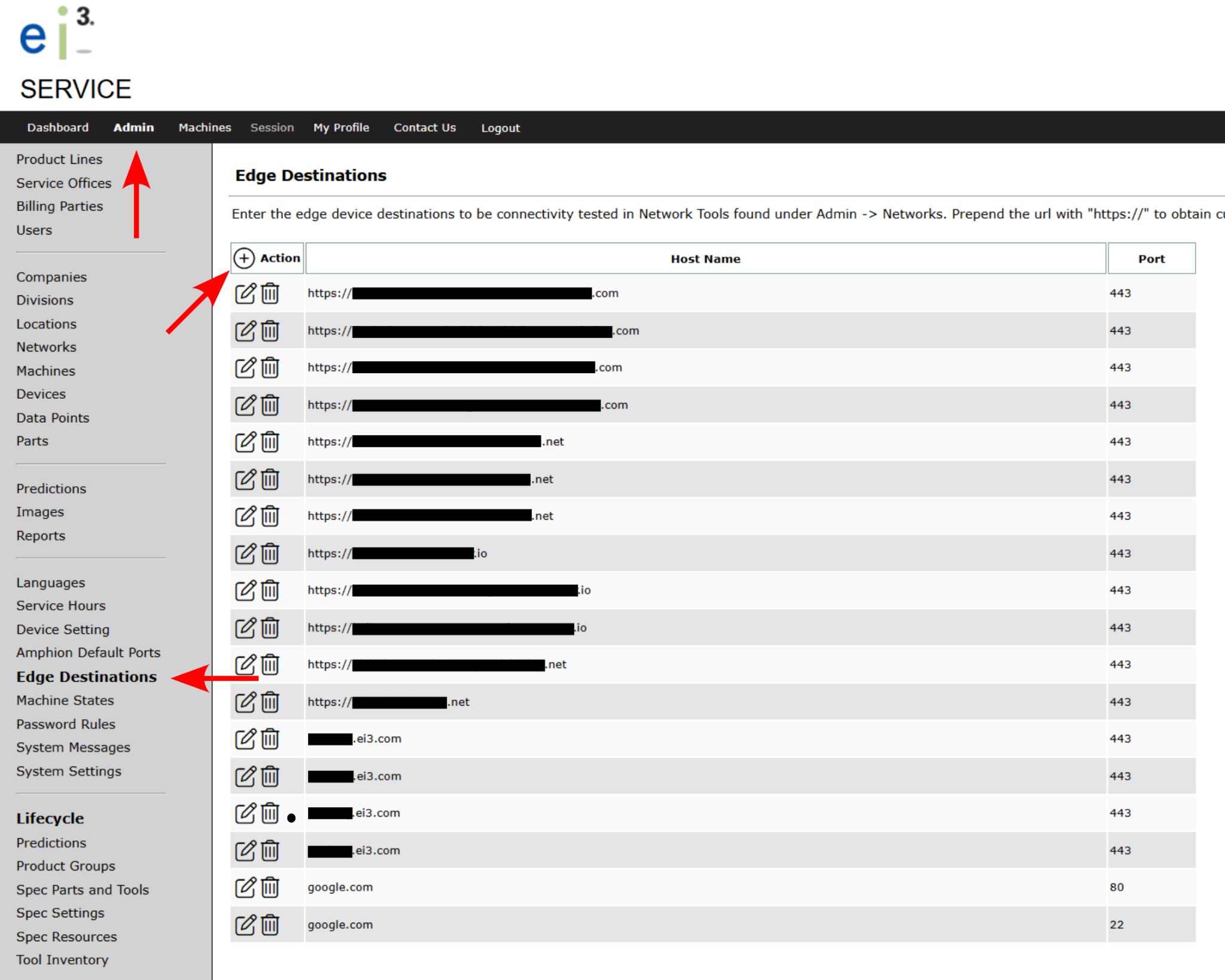
In order to add new target destinations to test, navigate to Admin -> Edge Destinations, and select the ‘+ Action’ button. This will bring you to a page where you can insert either an IP Address or domain, and a port number. After saving, the new destination will be tested against next time the tool is run.
© 2025 ei3 Corporation. Content of this web page is proprietary to ei3 Corporation.