
Note: The user must have administrator access level in SERVICE to be able to access the shop floor LAN network devices analysis tool in the Admin > Networks page.
Some special network setups involve isolated devices, sometimes on an external server, that while still on the same shop floor LAN, are separate from the machines on that LAN. Such setups may require a configuration update to the green box Amphion onsite before a remote service user can successfully access the isolated device(s).
To re-configure your green box Amphion to allow this change, you will need to do two things:
First, enable the feature on your Amphion by logging in to ei3 SERVICE and navigating to the Admin > Networks tab. Search for your network, then click the Edit icon  to view the Edit Networks page.
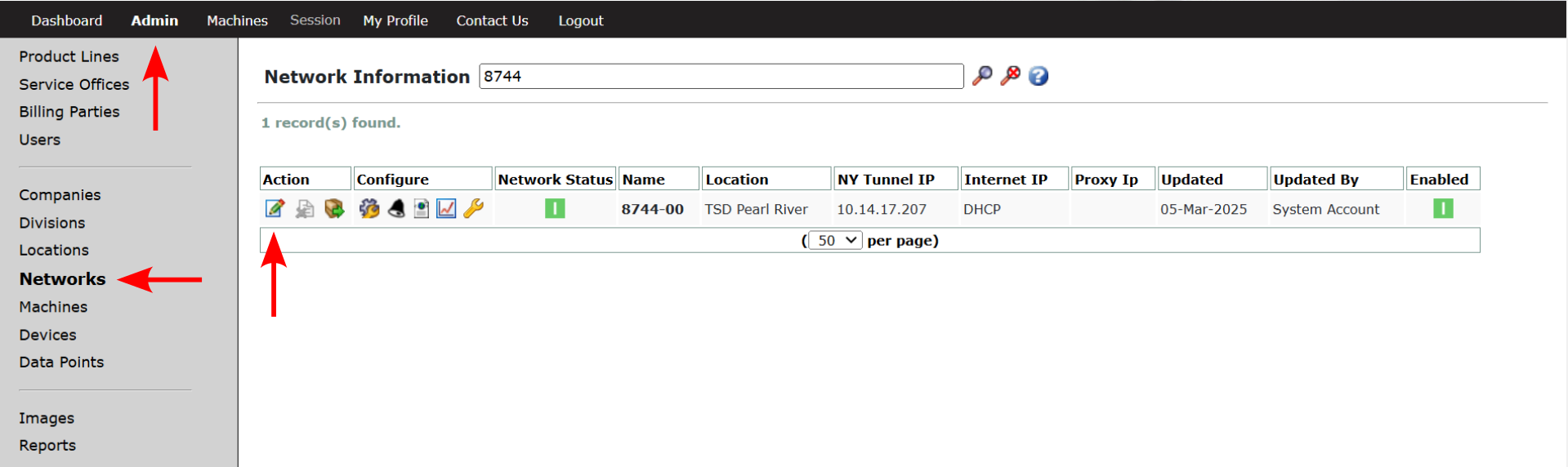
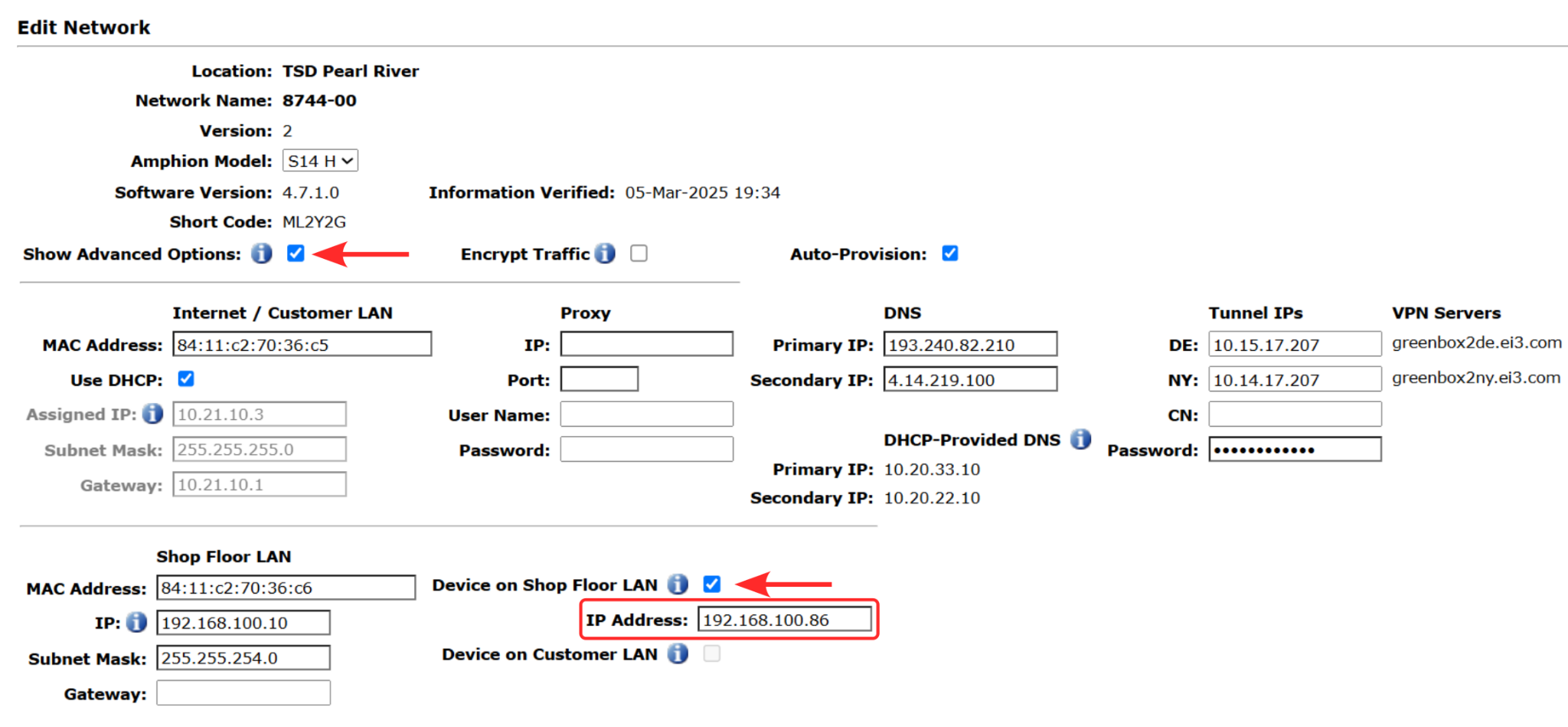
Check the Show Advanced Options box and the box to enable Device on Shop Floor LAN. Enter the IP Address of the device you want to access through a remote service session. If the address entered is not on the same subnet as the shop floor LAN, the box will turn red and prevent the user from saving the configuration. To save the new information and return to the Network Information view, scroll down to the bottom of the page and click the Save icon  .
.
Next, you’ll need to re-configure your Amphion with the latest changes by generating a new configuration file for it. On the Networks page, click the Configuration icon  to open the Configuration page, then click the New icon
  in the Action column to generate a new configuration file. After ensuring that a new configuration file has been generated, re-configure your Amphion following the instructions below:
Once reconfigured, the device on the shop floor LAN will be accessible to the user through the remote service session.