
Installing Zethus on Third Party Devices
Before attempting installation, make sure the device you’re installing on follows the minimum system requirements for Zethus.
The Device Will Need
- A stable internet connection
- Shell access (through SSH or Serial)
- Root privileges (through Sudo or root login)
- File transfer ability (SFTP / USB / uSD)
Pre-Installation
Before attempting installation of the Zethus software, prepare the device:
- Ensure the device has a stable internet connection
- Update the software:
# This guide assumes a debian-based operating sytsem. Follow the update procedure for your distribution.

sudo apt update

sudo apt upgrade
- Reboot the device after the upgrade finished
Creating a Configuration File
- Using the Service portal, create a new machine, selecting ‘Zethus’ as the device type
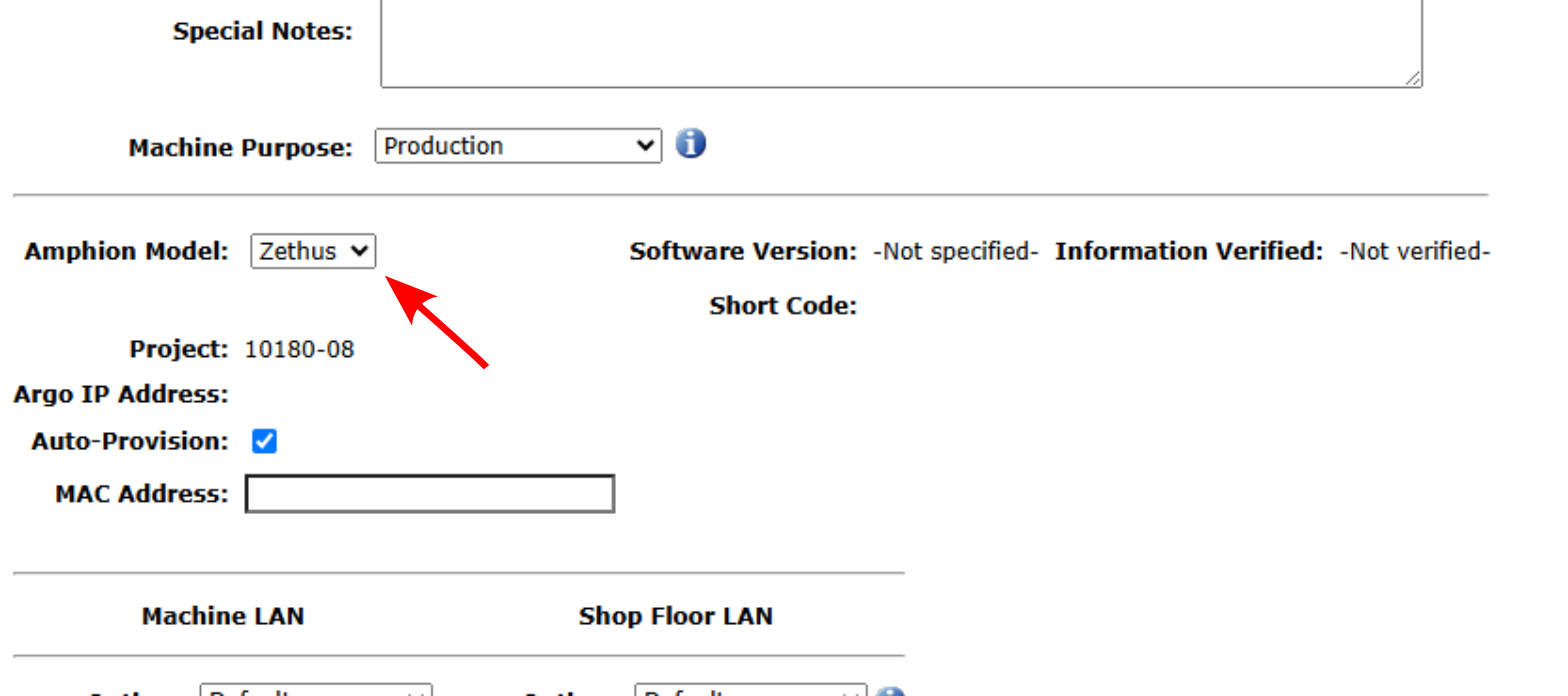
- After creating the machine, you will need to activate the Zethus license before being able to create a configuration file. Contact care@ei3.com to request a license activation, and include the project number for the new machine.
- Once Zethus is activated by ei3, creating configuration files and remote service will be enabled.
- Create a new configuration file and download it.
Before beginning, ensure the Installer is the same architecture as your device OS. Currently, Zethus supports the following CPU architectures:
- Amd64 (64 bit AMD and Intel)
- i386 (32 bit AMD and Intel)
- Arm64 (64 bit ARM / Raspberry Pi 3+)
- Armhf (32 bit ARM / Raspberry Pi)
To check your OS’s architecture, run the following command:
$ dpkg --print-architecture

amd64
Transfer both the installer file and .ei3 config file to the device. Make a note of the config file’s path on the device – you will need it during the installation process later.
Installation
The Zethus Installer is a self-extracting command line utility. When run, it can either guide the user through an interactive installation, or automate the installation using command-line options. This guide will focus on the interactive installation.
Important – Zethus requires Docker version 28.1.0 or later, and Docker Compose V2.36.0 to install. If the docker version is out of date or not available on the distribution, it will attempt to add the official Docker repository and download it through there. Any existing containers that were running on the older docker version should be migrated, but will need to be manually restarted. If the Docker version is at or above the minimum, no action will be taken.
- Copy the .ei3 configuration file and the provided Zethus Installer onto the device
- Run the installer:
$ sudo ./ZethusInstaller_arm64 -i

Verifying archive integrity... 100% MD5 checksums are OK. All good.

Uncompressing Zethus 100%

/home/admin /tmp/selfgz184011524

Checking system compatibility......

Debian-based system detected.

Welcome to the ei3 Zethus installation script. This will guide you through installing Zethus on your device.If at any point you need to exit, press CTL-C to cancel the installation.

If you have a .ei3 configuration file, enter it here. If not, you can configure the container by placing the file in <installation>/mnt/ or by running 'zethus config <file>' after installation.

Configuration file path >
- You will be prompted to input a configuration file. Enter the full or relative path to the file here. If you do not have one available, you can continue installation and configure Zethus later.
Configuration file path > /home/admin/10180-06_Zethus_v2_3339.ei3

Use the default installation directory (/var/zethus)?

(Y/n) >
- Here you can choose the directory where the Zethus files will be installed.
- If you type ‘Y’ and press enter, all Zethus-related files and configuration will be stored in the default directory ‘/var/zethus’.
- If you type ‘N’, the program will prompt you to enter a new directory, and new files will be stored there instead.
(Y/n) > Y

In order to set up routing between the Machine and Gateway (S14H / Green Box), two network interfaces must be configured. You will need to select one interface to act as the "To ei3" port, and one as the "To Machine" port. Setting up these interfaces will not affect any other networking on this OS.

Valid network interfaces:

eth0 - 192.168.3.27/24

eth1 - 192.168.3.231/24

wlan0 -

"To ei3" Interface >
- Next is setting up which network interfaces will be used for traffic to the green box, or “To ei3”, and which will be used for traffic going to the machine, or “To Machine”. All valid interfaces are listed here, with their IP addresses for easier identification.
- Don’t worry if you accidentally flip the interfaces during installation, they can be reconfigured later.
Enter the 'To Machine' interface, or type 'local' if only servicing this device. If you select 'local', you will not be able to connect to any external devices.

"To Machine" Interface >
- The ‘To Machine’ interface will determine what device will be remotely serviced, or where the data will be collected from.
- If you’re collecting data from the same device that Zethus is installed on, typing ‘local’ will allow you to do so.
- If your machine is connected to a second ethernet port, type the interface name instead.
"To Machine" Interface > eth1
If this device has a USB port, this device can optionally be set up to automatically configure when a USB drive is inserted containing a .ei3 file.
Enable automatic USB configuration? (Y/n) >
- Next, you will be given the option to enable automatic configuration via a USB drive. If you select ‘Y’ here, whenever a USB drive is plugged into the device, it will automatically mount and search it for a .ei3 file, and attempt configuration. This can be useful in an environment where SSH or a terminal is not accessible.
- Select ‘N’ if you want to disable this feature.
Enable automatic USB configuration? (Y/n) >

Install directory: /var/zethus/

To ei3 interface: eth0

To Machine interface: eth1

Command to be run: ./ZethusInstaller_arm64 -d /var/zethus/ --to_ei3 eth0 --to_mach eth1 --config /home/admin/10180-06_Zethus_v2_3339.ei3 --udev

Begin installation? (Y/n) >
- Input ‘Y’ and press enter – installation will begin. The installer will attempt to download Docker and its dependencies if they are not already installed on the system.
- If there is an error during installation, run ‘sudo zethus uninstall’, then follow the official Docker documentation on installing Docker Engine. Follow this guide again to retry installation.
- If you want to install Zethus on other devices with the same configuration, a one-line installation command is provided based on your inputs.
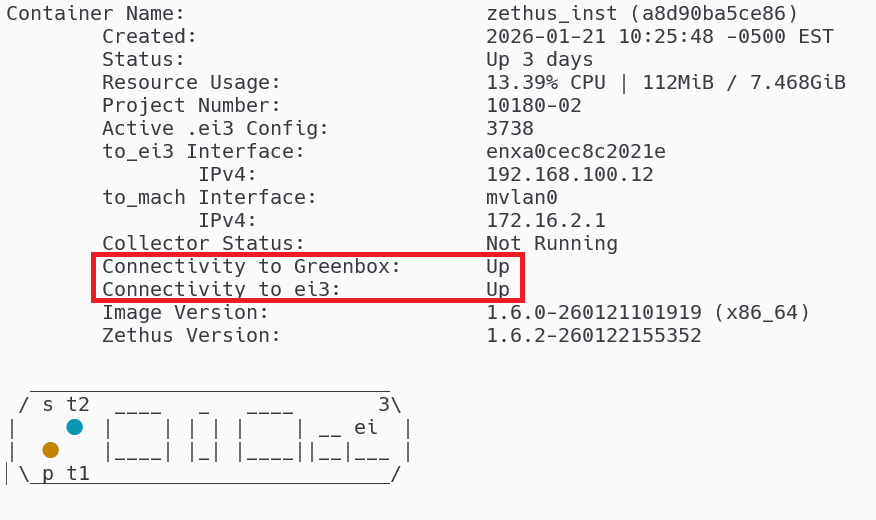
- After installation, run ‘sudo zethus status’ and make sure the container is connected to the green box and has connectivity back to ei3. See here for more information on Zethus status.
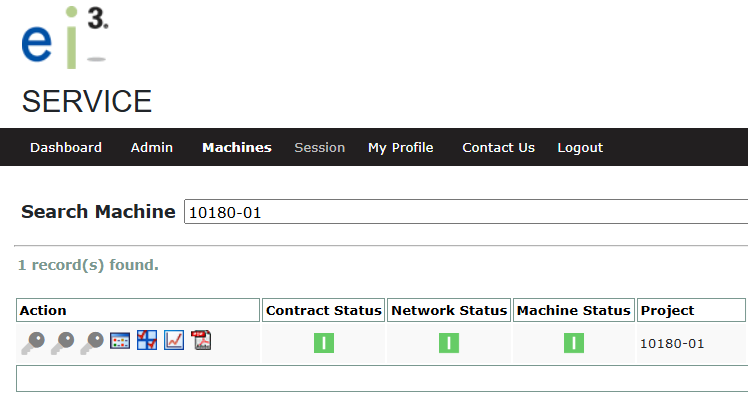
- Additionally, in Service, navigate to “Machines” and enter the project number. It should show up as ‘Online’.
For more information on managing your Zethus container, see the following articles:
- Zethus Device Compatibility
- Using the Zethus Command Line Utility
- How to Check the Status of Your Zethus Application
- Link Your Device’s Physical LEDs to Zethus