
After installing Zethus, you have the option to set up a device’s physical LEDs to monitor the status of the Zethus container. There are four files made available for this purpose, located in /var/zethus (or your chosen installation directory):
- pow_led
- sys_led
- tun1_led
- tun2_led
These files contain either a ‘1’ or a ‘0’ corresponding to ‘on’ or ‘off’ respectively, and are written to in real time when the container is running. This data can be referenced at any time by the user through symbolic links or by script.
See below for an example using Linux LED class devices.
Device Tree Method
In order to use this method, the device must have its LEDs accessible as LED class devices in Linux. This is done through Device Tree Overlays (DTOverlay), a feature of Linux that sets up hardware on boot. To check if your device can use this method, run this command and examine the output:

The entries in /sys/class/leds/ are references to the physical LEDs on the device that can be controlled.
- Confirm which LEDs in /sys/class/leds correspond to the hardware you want to change.

- Once you find the correct device, symlink it to the led file you want it to represent.
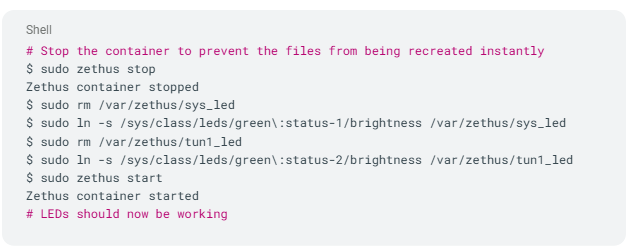
To double check your work, run ‘sudo zethus status’ and confirm the status lights match the LEDs on the device.