
Note: The user must have administrator access level in SERVICE to be able to access the shop floor LAN network devices analysis tool in the Admin > Networks page.
With this feature, SERVICE admin users can configure the Amphions to allow a device on a customer’s factory LAN, such as an MES or SCADA system, to access a machine’s Amphion red box with the UA Server Edge Upgrade to get data directly from the machine. The Amphion will read data from the machine control devices in their native protocol, convert it to OPC UA, and make it available for the factory LAN device to read via its UA server through the “To ei3” interface port. This can be done by following these steps:
Log into SERVICE and navigate to Admin > Networks. Search for the machine’s project number at the customer location for which you would like to enable this feature, using the search bar at the top.
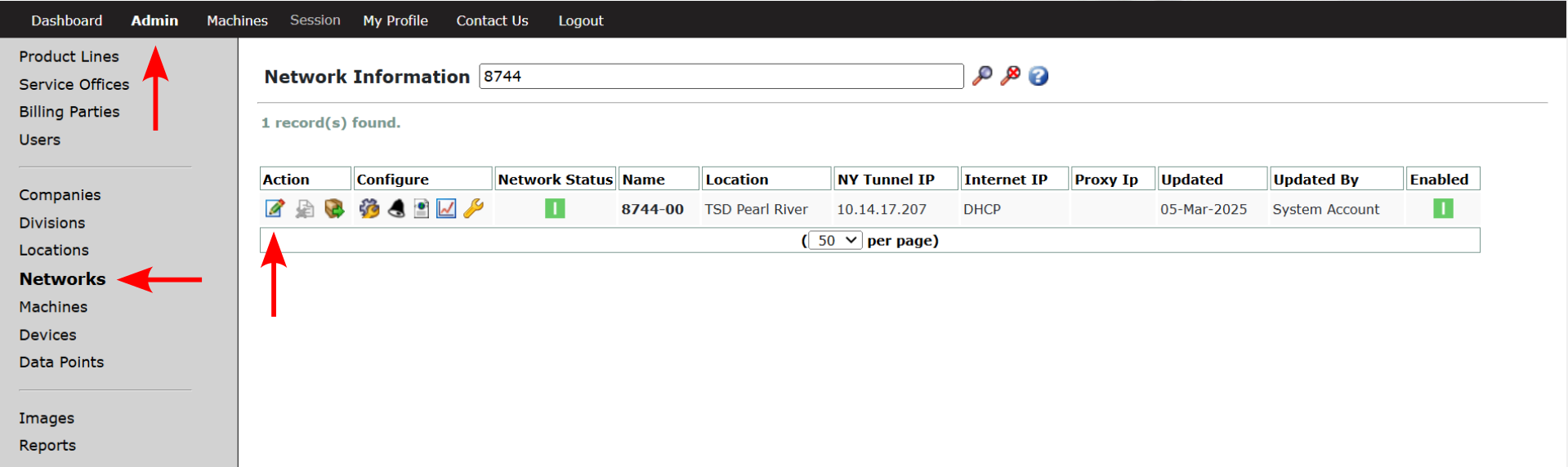
Click on the edit icon  next to the Action column, which will bring you to the “Edit Network” page. This page will allow you to edit the network information to which your Amphion S14 is connected.
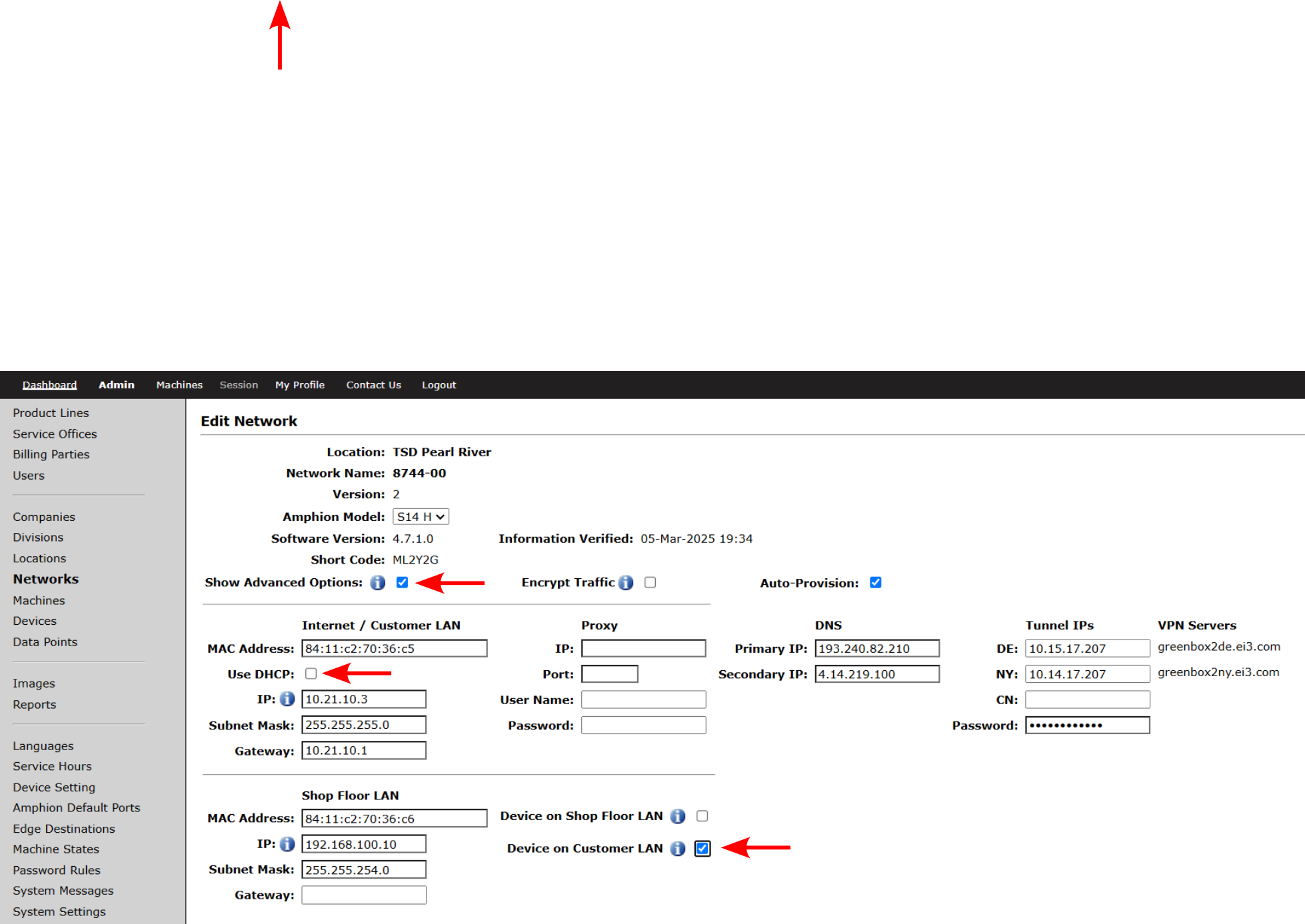
Click to check the “Show Advanced Options” box. Then under the Shop Floor LAN section, check the box next to “Device on Customer LAN”. This will enable you to add the connectivity details from the Customer LAN device to reach the red box on the section that pops up once the box is checked. Please note that this checkbox is only available when the network is configured with a static IP address; when DHCP is selected, the Device on Customer LAN check box will not be available.

Next, enter your desired name for the connection, so that you can easily identify it later. Then enter the IP Address of the device on the Customer LAN. Make sure that this IP Address is correct and lies within the Customer LAN subnet configured for the green box at that customer’s location. This is the IP address that other computers on the Customer LAN will have to use to connect to the machine’s red box’s OPC UA server.
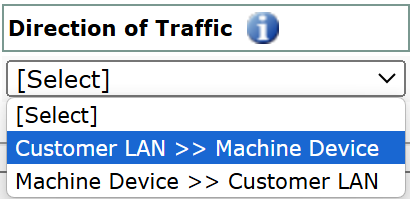
In order for the device on the Customer LAN to access the UA server on the Amphion, the direction MUST be set to Customer LAN >> Machine Device.
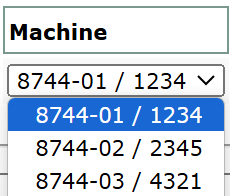
Next, select the machine(s) to which you would like to enable the connectivity. The project number is displayed first followed by the ‘/’ and then the machine’s serial number.
Under the Device column, the dropdown will show you all the devices (such as PLCs) connected to the machine you have selected, including the red box Amphion itself. When connecting a device on the Customer LAN to the Amphion S14, the Red Box Amphion should be selected.
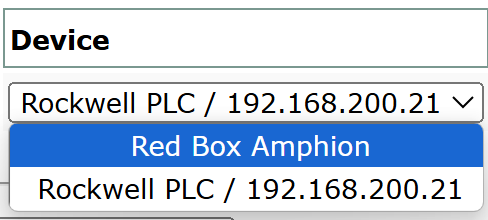
After the Red Box Amphion device is selected, check the box under the TCP column and enter 4840 in the Port(s) column.
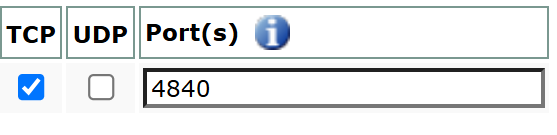
Below is an example of a completed configuration for a Customer LAN device to access a red box Amphion’s UA server.

If the network contains several red boxes hosting OPC UA servers, a separate IP address will have to be reserved for each of them on the Customer LAN, and a separate row in the Device on Customer LAN table will have to be created for it. To add the connections to additional red boxes, click on the new icon  next to the Action column. To save the new information and return to the Network Information view, scroll down to the bottom of the page and click the Save icon
  .
.
Finally, you’ll need to reconfigure your green box Amphion with the latest changes by first generating a new configuration file for it. On the Networks page, click the Configuration icon  to open the Configuration page, then click the New icon
  in the Action column to generate a new configuration file. After ensuring that a new configuration file has been generated, re-configure your Amphion following the instructions below:
© 2025 ei3 Corporation