Purpose:
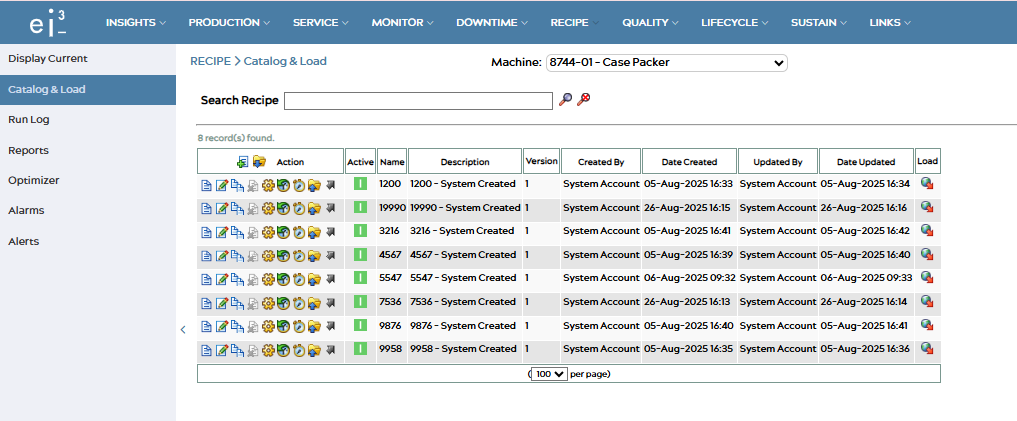
This guide explains how to enable the automatic recipe creation feature for machines in the admin portal. When activated, the system will automatically generate new “system created” recipes for every new entry or change made on the customer side.
Instructions:
Step 1: Access Admin Portal
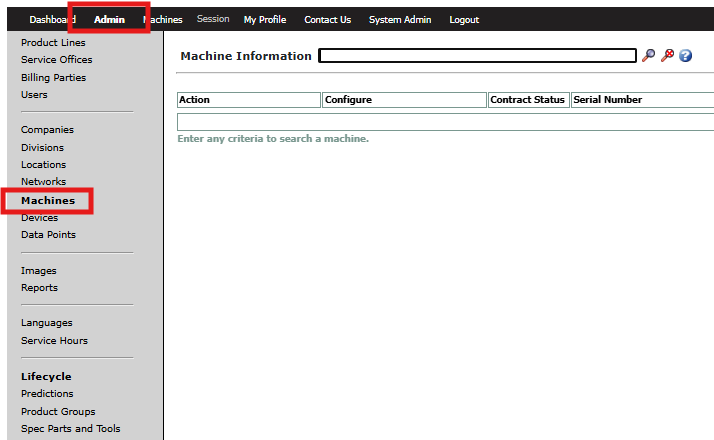
- Go to admin portal and navigate to the Machines section
Step 2: Locate and Edit Machine
- Search for your machine and click the Edit button

Step 3: Enable Auto Recipe Creation
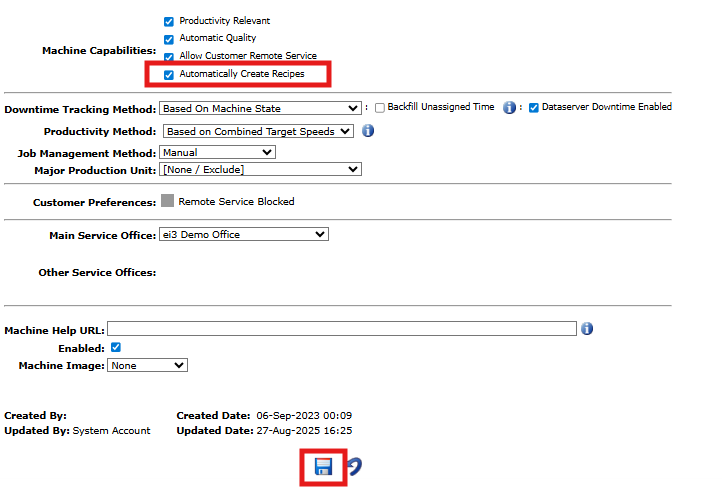
- Scroll down to Machine Capabilities, select “Automatically create recipes” and save
How It Works
Previously, creating recipes required manual steps – going to Recipe > Catalog & Load, clicking New, entering names and descriptions, setting target speeds, and configuring set points.
Now with auto-create enabled, the system captures these settings automatically whenever changes to the Recipe Name are detected in data collection (contact your system administrator to determine the specific data point being used). Instead of manually creating recipes, the system generates them in the background and marks them as “system created”.
Result
Once the automatic recipe creation feature is activated:
- System-created recipes are automatically loaded on the machine when new Recipes are identified
- These recipes appear in the customer portal under Recipe > Catalog & Load
- These recipes will be clearly marked as system-generated
- Customers will see these recipes appear automatically in their interface
- These recipes can be edited just like manually created one