
When an Amphion is connected to a network and powered on, it contacts the network. If no project has been assigned to it yet, the network reports it to ei3 as unconfigured. The Unconfigured Machines page lists every such Amphion across all of your networks in one place, so you can find a newly installed Amphion without knowing which network it is on and assign it to its project from the same page.
Where to Find the Page
Log into Service and open the Admin menu. Choose Unconfigured Machines. It is in the last group of entries in the menu.
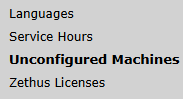
The page is available to system admins and partner admins. It lists the networks of your own organization only. Without admin rights the page shows “Insufficient access permission.” instead of the list.
What the Page Shows
The page lists one row per unconfigured Amphion, newest first. Above the list it shows how many rows were found, for example “3 record(s) found.” Click any column heading to sort by it. The footer pages the list and lets you choose how many rows to show per page.
If there is nothing to do, the page says “No Unconfigured Machines found on any network.”
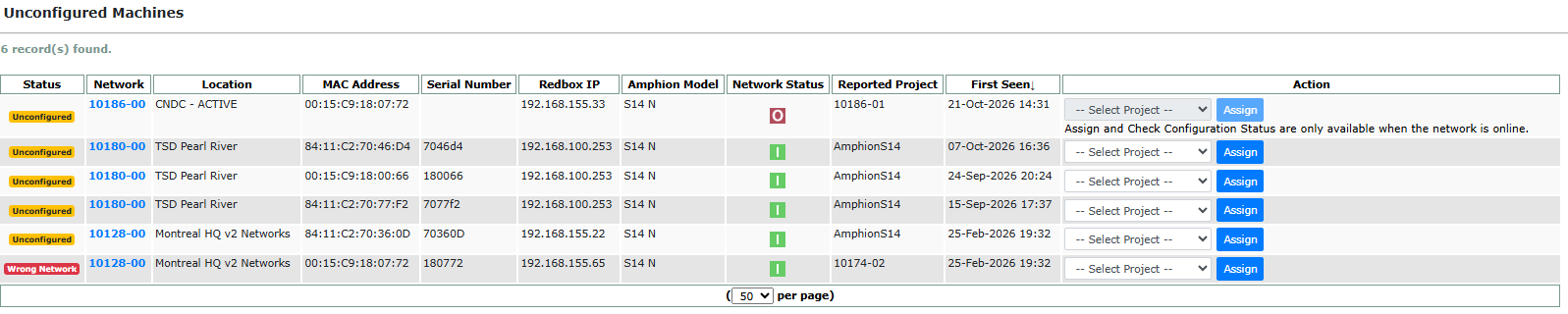
Each row shows:
- Status – a badge, either Unconfigured or Wrong Network. Hover over the badge for an explanation. See the next section.
- Network – the network that reported the Amphion. The name is a link that opens that network’s Network Tools.
- Location – the location the network belongs to.
- MAC Address – the Amphion’s MAC address, as the network saw it. Match it to the label on the Amphion.
- Serial Number – the Amphion’s serial number, if it reported one.
- Machine IP – the IP address the Amphion currently has on the network.
- Amphion Model – the Amphion’s model, if it reported one. The project picker uses it to offer only projects of the same model.
- Network Status – a green box with an “I” when the network is online, a machine with an “O” when it is offline. Assign only works while the network is online.
- Reported Project – the project the Amphion says it is configured for, if any.
- First Seen – when the network first reported this Amphion.
- Action – the project picker and the Assign button.
Status Badges
Unconfigured (yellow) – the Amphion is reporting to ei3 but is not assigned to a project. Select a project from the Action dropdown and click Assign.
Wrong Network (red) – the Amphion is contacting ei3 but is registering on a different network than expected. It carries a configuration for a project on another network. Check the Amphion’s local network configuration: either it was plugged into the wrong network, or its project should be moved to this network first (see How to Move Machines from One Network to Another). Assigning a project from this page replaces the configuration the Amphion has.

Which Projects the Picker Offers
The dropdown in the Action column lists the projects the Amphion can be assigned to. A project appears only when all of the following are true:
- It is a machine on the same network as the row.
- Its machine is offline. A project whose machine is online already has a working Amphion, so it is never offered.
- Its Amphion model matches the row’s model. If the row did not report a model, every offline project on the network is offered.
A project marked with a warning sign (⚠️) was online within the last 24 hours. Its Amphion may be only briefly disconnected, and assigning the same project to a second Amphion could give two Amphions the same IP address when the first one comes back. You can still choose it, but the page asks you to confirm first.

Instructions: Assigning a Project
- Find the row for the Amphion. The MAC address or serial number printed on the Amphion is the easiest way to match it.
- Check that Network Status is green. If it is red, the picker and the Assign button are disabled and the row shows “Assign and Check Configuration Status are only available when the network is online.” Get the network back online first.
- Choose the project in the dropdown.
- Click Assign. If the project has the warning sign, a confirmation appears: “Warning: Project {name} was online within the last 24 hours. Assigning this machine may cause an IP conflict if the project comes back online. Do you want to proceed?” Click OK to go ahead or Cancel to pick a different project.
- The button shows a wait indicator for a moment. On success a green bar appears above the list: “Successfully assigned {project} to device {MAC address}.” and the row disappears.

What happens behind the scenes: the page builds a fresh configuration for the chosen project and queues it on the network for the Amphion’s MAC address. The network then applies the configuration to the Amphion. The network has to be online because the configuration is handed to it directly.
Note: The row is removed as soon as the configuration is queued, before the network has finished. If the Amphion is still unconfigured at the network’s next check-in, for example because the push failed, the row comes back and you can assign it again. To watch the push itself, open the network’s Network Tools (see below).
The project you just assigned stays in the list for other rows on the same network until its machine comes online. Take care not to assign the same project to a second Amphion.
Messages the Page Can Show
Error messages appear in a red bar above the list.
- Please select a project before assigning. – Assign was clicked with the dropdown still on “– Select Project –“. Choose a project, then click Assign.
- Assign and Check Configuration Status are only available when the network is online. – The network went offline after the page loaded. Bring the network online and reload the page.
- Invalid project selection. – The project you chose is no longer offered for this row. Usually someone else assigned it, or its machine came online. Reload the page and pick again.
- Network tunnel IP not available. – ei3 has no VPN tunnel address for this network, so it cannot reach it. Check the network in Network Tools. Contact ei3 support if the network has never had a tunnel.
- No valid configuration found for project {name}. – The configuration for that project could not be built. The project’s machine is usually missing something in its network settings. Open the machine, complete its settings, then try again.
- Failed to assign {project} to device {MAC address}. – The network was reached but did not accept the configuration. Try again. If it keeps failing, open the network’s Network Tools and check it.
- Error configuring device: {detail} – An unexpected error while talking to the network. Try again. If it repeats, send the message text to ei3 support.
- Insufficient access permission. – Your user is not an admin, or the row belongs to another organization. Ask an admin to assign the Amphion.

How This Relates to Network Tools
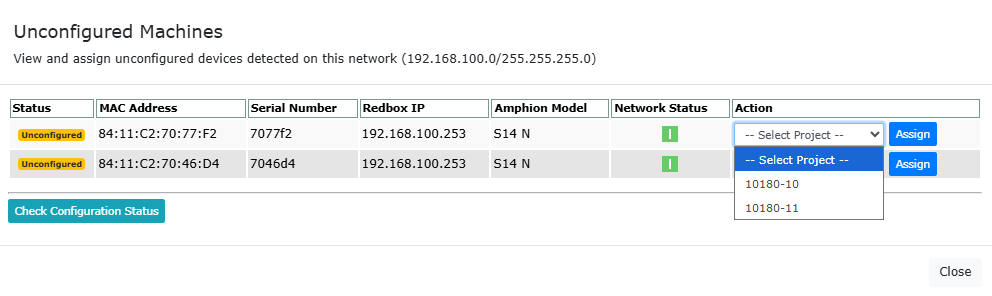
Each network has its own Unconfigured Machines list on its Network Tools page. It shows the same Amphions for that one network, with the same project picker and Assign button, and it also has a Check Configuration Status button that shows what the network is doing with a queued configuration.
The Unconfigured Machines page is the view across all networks. Use it to see at a glance where Amphions are waiting and to assign them. Click a network name in the list to jump to that network’s Network Tools when you need the per-network tools, such as checking the configuration status after an assignment, or when the network is offline and you want to see why.
Related Articles
- How to Move Machines from One Network to Another
- How to remotely update your Amphion’s network configuration
- Machine Network Troubleshooting Tools
- Amphion Connection Troubleshooting Tree